

Set up the Merge Gateway
Connect GitHub and production data, review the policy Hud drafts, then simulate it and turn it on.
Setting up the Merge Gateway takes five steps. Hud reads your recent PRs, drafts a policy from them and from what production shows, and lets you try it before it touches a PR. Nothing changes on your PRs until you activate the policy, and even then a person approves and merges by default.
Quick start has the short version.
Before you start
- A Hud account. Sign up at app.hud.io.
- Access to the GitHub organization that owns the repository. If you aren't an owner, GitHub asks an owner to approve Hud's app.
- Production data for the services that run the repository's code. That's Hud's Sensor in a supported backend service, or an observability stack Hud can read. See Where Hud runs. You can set up the gateway without it, but then every PR goes to manual review.
1. Connect GitHub
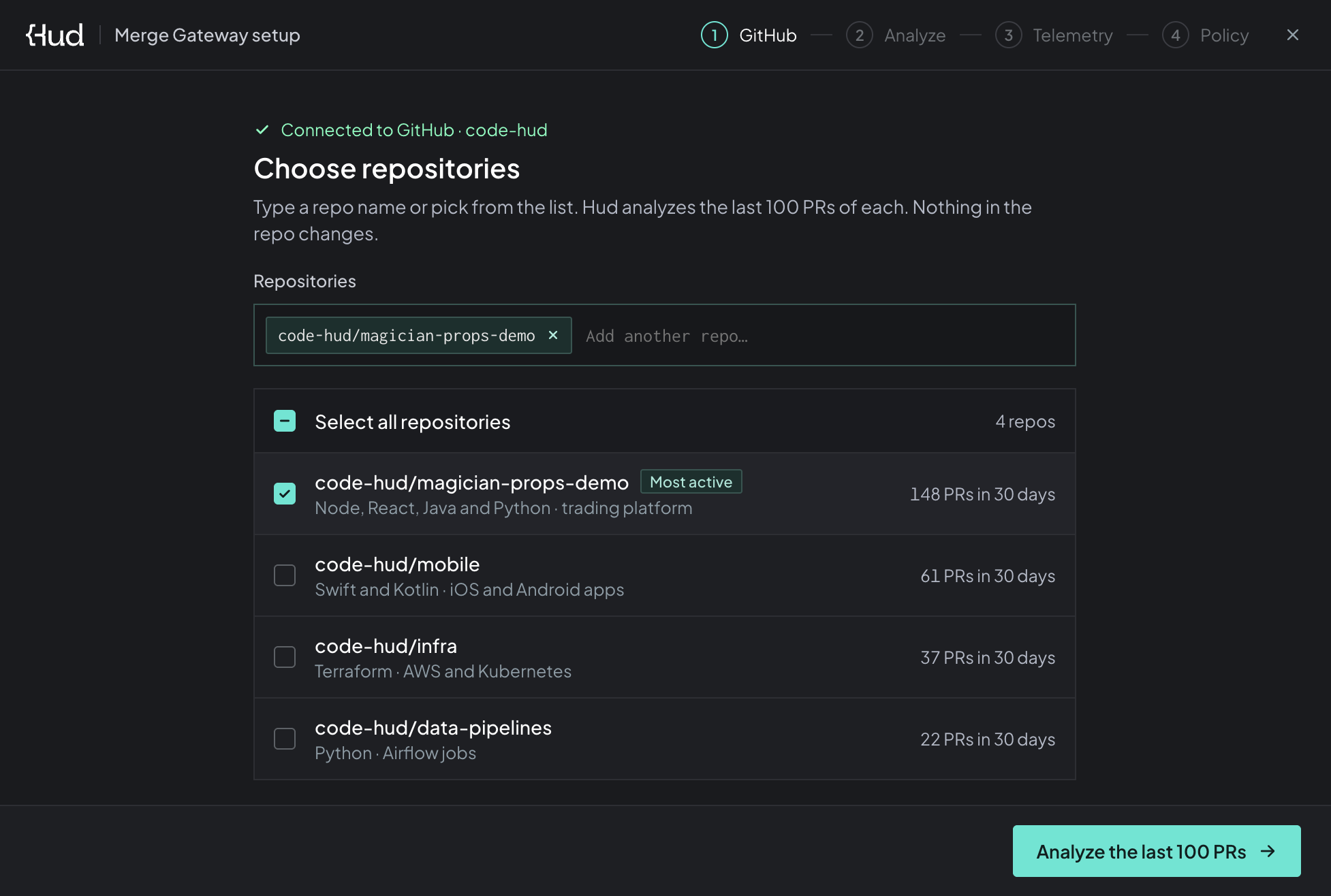
Hud reads your repositories through its own GitHub App, with read-only access.
- Select Connect GitHub. GitHub opens the install page for Hud's app.
- Pick the GitHub organization or account that owns your code.
- Choose All repositories, or Only select repositories and pick the ones Hud should check.
- Select Install & Authorize. GitHub sends you back to Hud.
If you aren't an owner of the GitHub organization, GitHub asks an owner to approve the installation.
2. See what Hud would change
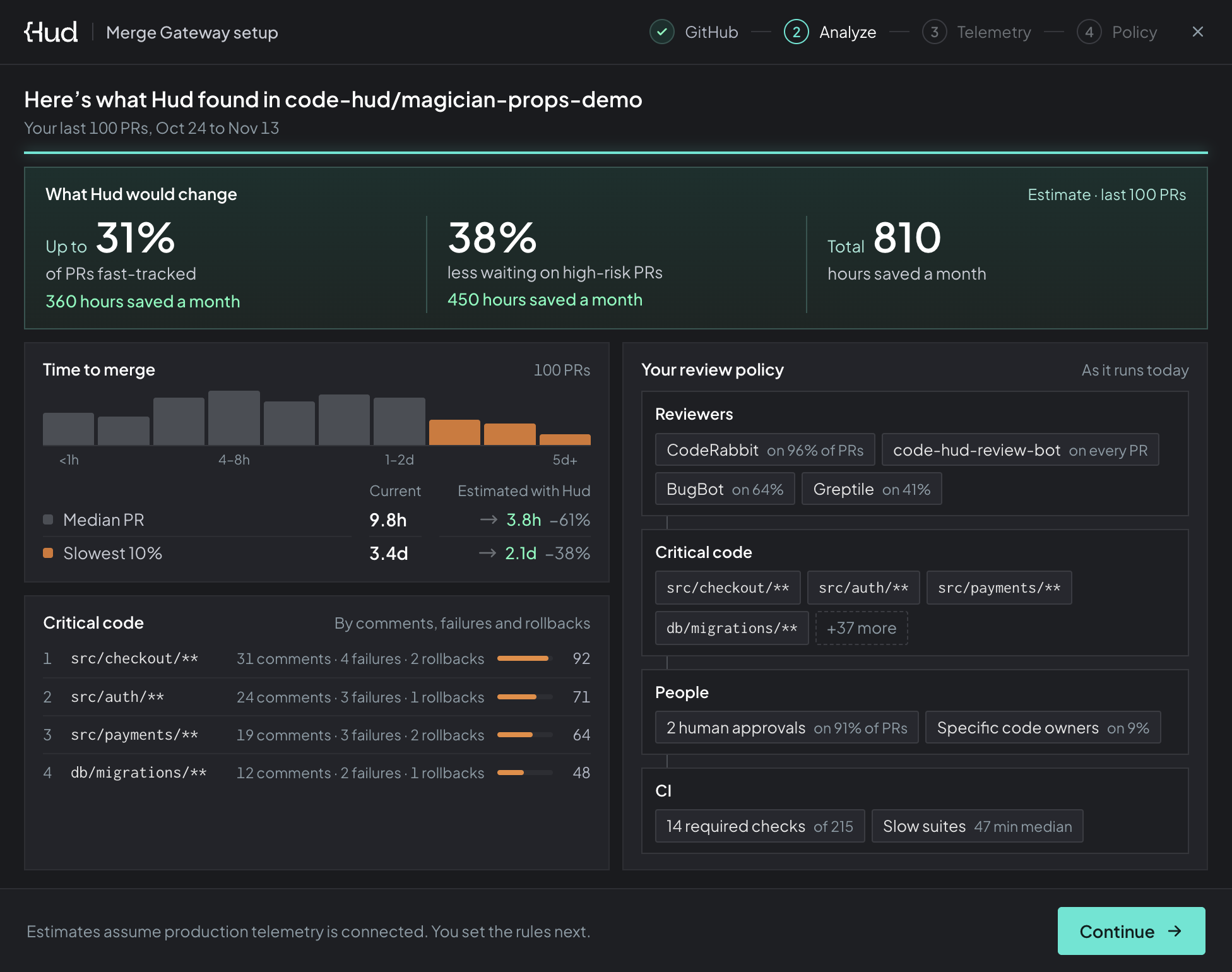
Hud reads your last 100 PRs, with their reviews, CI runs, comments and rollbacks. Then it shows:
- What Hud would change: how many PRs could take the fast track, how much less time high-risk PRs would wait, and how many hours that would save each month.
- Time to merge: for the median PR and the slowest 10%, today and with Hud.
- Critical code: the paths that drew the most comments, failures and rollbacks, ranked.
- Your review policy as it runs today: which reviewers run and on what share of PRs, your critical code, how many human approvals PRs get, and your CI checks.
These are estimates, and they assume production data is connected. Select Continue.
3. Connect production data
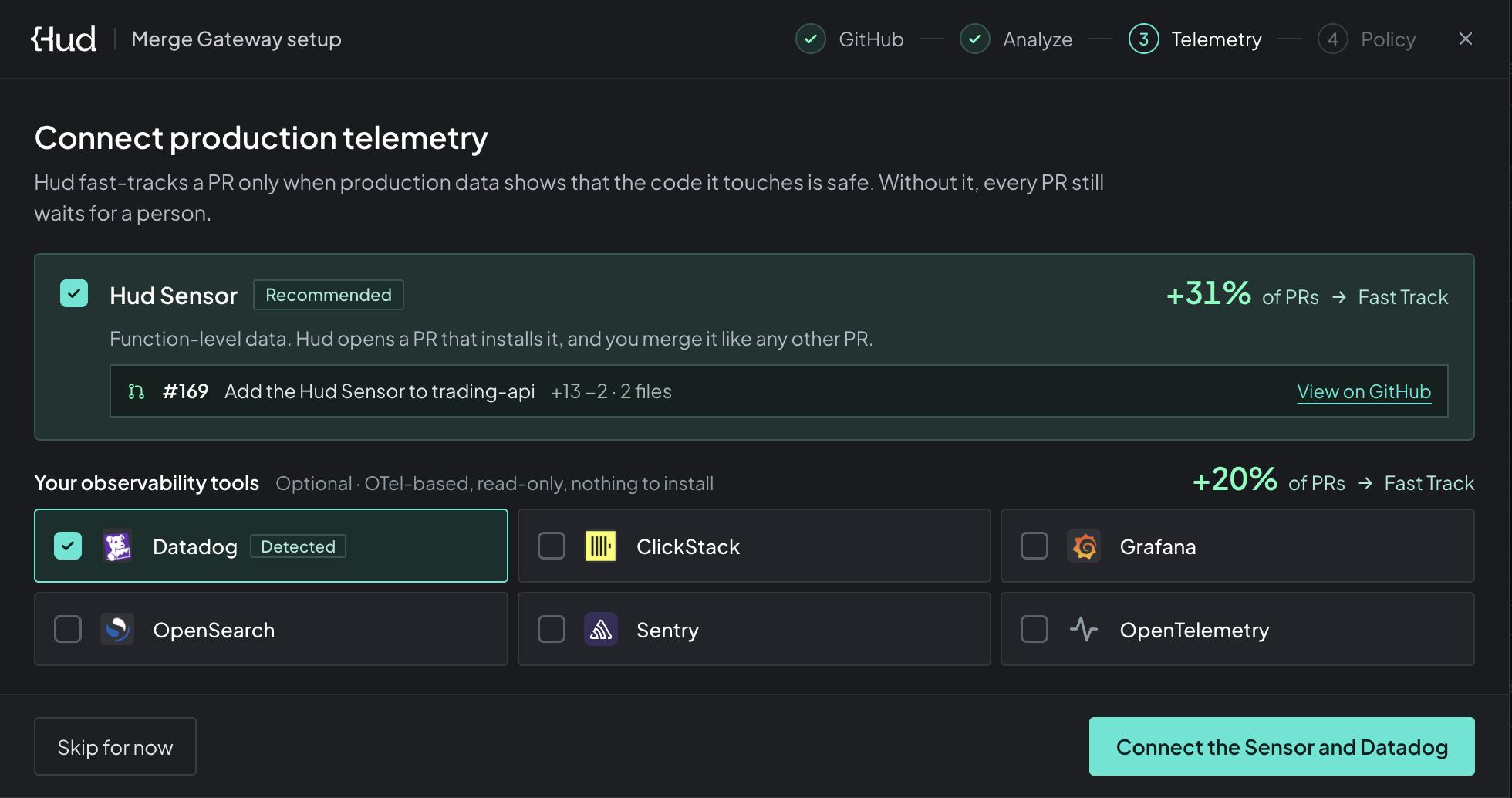
Hud's production reviewer needs to see how the code a PR touches runs. Choose one or both:
- Hud's Sensor (recommended): select Connect the Hud Sensor, and Hud opens a PR that adds the Sensor to a service. The PR adds one dependency and loads it first, with no changes to your handlers. Review it and merge it like any other PR. Once the service deploys, it appears in Hud as soon as it sends its first data, with the endpoints and functions Hud found.
- Your observability tools: select Datadog, ClickStack, Grafana, OpenSearch, Sentry or OpenTelemetry. Hud reads them through OpenTelemetry, read-only, and you add nothing to your services.
The Sensor reads its API key from the HUD_KEY environment variable. Set it in each environment to that environment's key, from the API Keys page. To add the Sensor by hand instead, follow the guide for Node.js, Python or Java.
With the Sensor, Hud sees every call to every function and can fast-track more PRs. Agentic Rollout and forensics need Hud's Sensor to work.
You can select Skip for now, but without production data every PR goes to manual review.
4. Review your draft policy
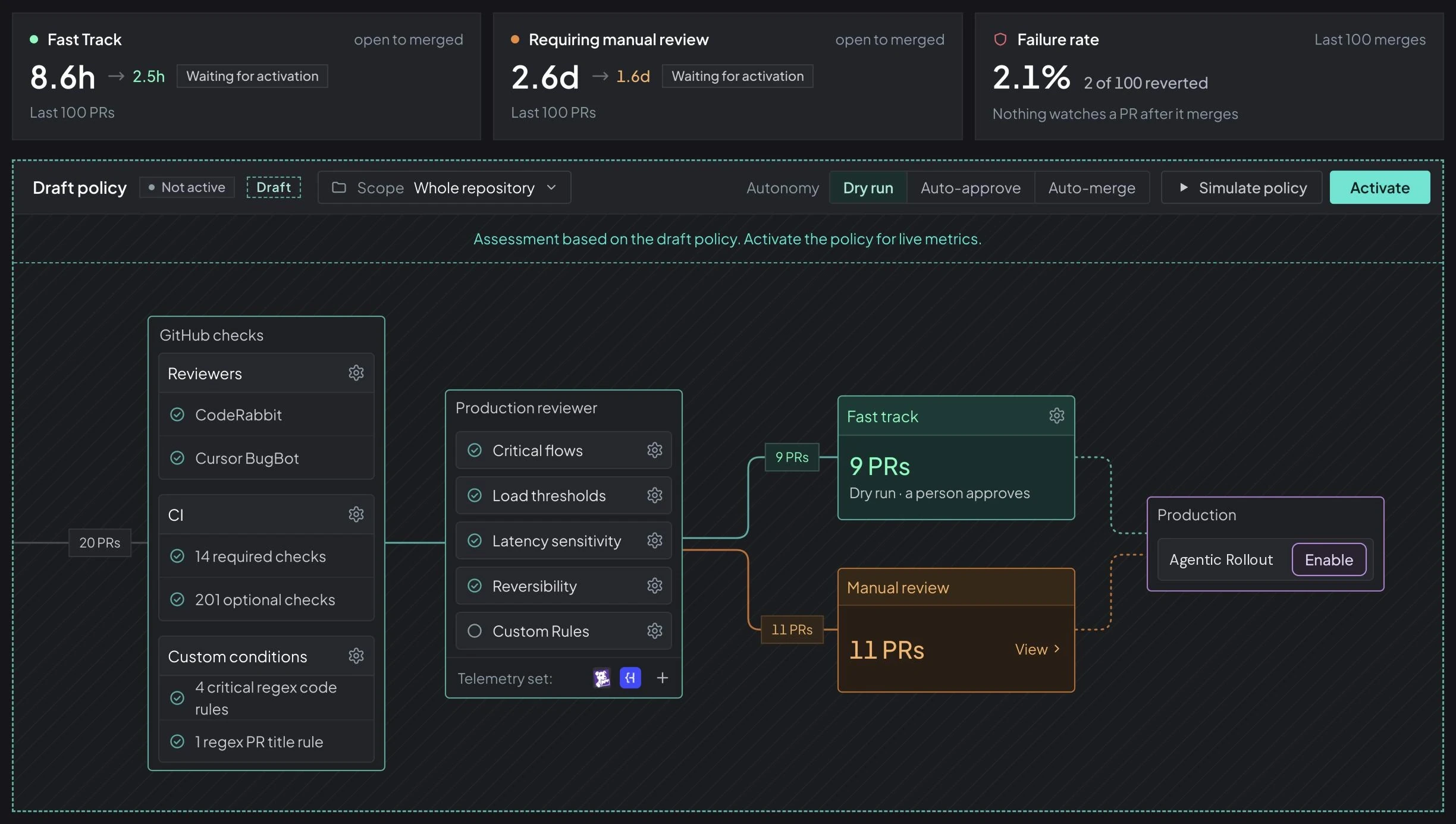
Hud drafts your first policy from the repository and from what production shows. It reads the critical paths in your last 100 PRs, maps the endpoints production depends on, matches your reviewers and CI checks, and sets the Fast Track rules. Nothing changes on your PRs yet.
The draft opens on the Merge Gateway page. It covers the whole repository by default:
- GitHub checks: your reviewers, your CI checks, and custom conditions such as critical-code rules.
- Production reviewer: critical flows, load thresholds, latency sensitivity, reversibility and custom rules.
- Fast track and Manual review: how many of your recent PRs would land in each lane.
Select the settings icon on any rule to change it. Autonomy stays on Dry run unless you change it.
5. Simulate and activate
- Select Simulate policy. Hud replays your 20 most recent PRs through the draft and shows how many would be fast-tracked. Nothing is approved, merged or commented on. Select Exit simulation when you're done.
- Select Activate, check the settings it shows (comments on PRs, and the autonomy level), and confirm. Hud checks your open PRs right away, then every new PR as it opens.
Your policy is now version 1. Each change after this makes a new version, listed in the Change log.
After you activate
- On each PR: Hud posts its decision as a comment. On the Pull Requests page, Approve Fast Tracked approves every fast-tracked PR at once. See Put Hud to work.
- On the Merge Gateway page: time to merge for each lane fills in as checked PRs merge, and the fast-track failure rate once fast-tracked PRs reach production. Analytics shows trends after about a week.
- If you have the Sensor: turn on Hud agentic rollout in the policy's Production box, so Hud watches each change after it merges. See After the merge.
- When you're ready: move autonomy to Auto-approve or Auto-merge. Hud then approves, or approves and merges, fast-tracked PRs on its own.
If something doesn't work
- A service doesn't show up after the Sensor PR merges. The Sensor hasn't started, or it can't reach Hud. Check that the service deployed and that
HUD_KEYis set in its environment. - A service shows up but has no data. Send it some traffic.
- Every PR goes to manual review. Hud has no production data for the code those PRs touch. Check step 3.
- Anything else. Chat with our support team or email [email protected].
Updated about 6 hours ago