

Service Groups
Group related services so each team sees its own services in Hud and gets alerts in its own Slack channel.
How service groups work
- A service group is a named set of services in your account. Create one per team, product area or domain.
- A service can be in more than one group. Services that are not in any group work exactly as before.
- Everyone in the account can see all groups.
- Anyone in the account can create, rename or delete a group, and change its services, members or Slack channel.
- Members are the people subscribed to a group. Anyone can subscribe or unsubscribe themselves. Subscribing changes what you see in Hud, and soon what your coding agent queries through the Hud MCP. It does not send you notifications.
Prerequisites
- The Slack integration installed, to send a group's alerts to its own channel
Create a service group
1. Open Service Groups
Navigate to Settings → Service Groups.
2. Create the group
Select Create Service Group, enter a Group name and select Create. The group page opens.
Group names must be unique in your account. Hud ignores case and surrounding spaces when comparing names.
You're subscribed to the group automatically when you create it.
3. Add services
Under Services in this group, select Add services. The drawer lists services under Not in a group and Already in a group. You can add services from both.
4. Set a Slack channel
On the Slack card, select Set a Slack channel for alerts from this group. Pick an environment and a channel. Select Map another environment to add more.
Environments you don't map keep using their default channel. Add the Hud app to the Slack channel before you select it.
When you connect, change or remove a group channel, Hud posts a message in that channel so the team knows.
5. Add members
Under Members, select Add members and pick the people who should have this group in their view. They can also subscribe themselves.
Subscribe to a group
In Settings → Service Groups, select Subscribe on the group's row. The button changes to Subscribed.
Choose which services you see
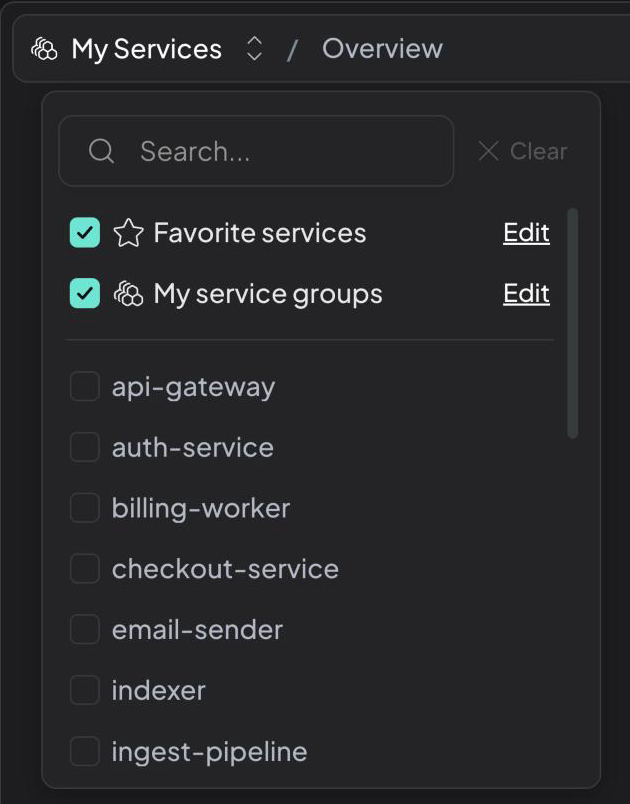
The service filter at the top of the page sets which services Hud shows. It applies to every page that shows service-based data, such as Issues and Endpoints, and your choice stays with you as you move between pages.
- Favorite services: the services you starred. To star a service, go to Explore → Services and select the star next to it.
- My service groups: every service in the groups you subscribe to.
- Specific services: pick them from the list.
- All Services: everything in your account.
By default, both Favorite services and My service groups are selected. The filter then shows My Services: your favorites plus your groups' services, combined.
Use service groups with Hud MCP (coming soon)
Coming soonThis capability is coming soon. The details below describe how it will work.
The Hud MCP server will know which groups you subscribe to. Your coding agent will be able to scope its queries in three ways:
| Scope | What the agent queries | When it's the default |
|---|---|---|
repo | Services mapped to the repo you're working in | When the repo is mapped to services |
my_service_groups | Services in every group you subscribe to | When the repo isn't mapped, for example with remote MCP |
all | All services in the account | When the repo isn't mapped and your groups have no services |
You won't need to set anything. Ask your agent in plain language, for example "check errors across my service groups" or "look at all services". To look at specific services, ask for them by name.
How alerts are routed
| The service is | Alerts go to |
|---|---|
| In one or more groups that have a channel for this environment | Every one of those group channels (each channel once) |
| In groups, but none has a channel for this environment | The environment's default channel |
| Not in any group | No change. Its own channel, or the default channel, as today |
Default Slack channel: Services that aren't in any group use the environment's default channel. Grouped services also use the environment's default channel when none of their groups has a channel for that environment. Set the default channel per environment on the Slack card in Settings → Integrations.
Once a service is in a group with a routed channel, alerts will no longer be sent to the default channel configured for the environment.
Each group can route each environment to a different channel, for example #payments-prod for production and #payments-staging for staging. Set them on the group's Slack card (step 4 above).
Rename or delete a group
On the group page, select the pencil icon to rename the group. To delete it, open the ⋯ menu and select Delete. Deleting a group does not delete its services.
Troubleshooting
Filtering
- My service groups is disabled. You aren't subscribed to any group yet. Subscribe in Settings → Service Groups.
- Favorite services is disabled. You haven't starred any services yet. Star them in Explore → Services.
Managing groups
- "A service group with this name already exists." Pick a different name. Names that differ only in case count as the same name.
Slack alerts
- Alerts for a grouped service still land in the default channel. None of its groups has a channel for that environment. Set one on the group's Slack card.
- You see Setup Slack integration instead of a channel picker. Install the Slack integration first.
- The group channel doesn't receive alerts. Add the Hud app to the Slack channel.
Updated about 3 hours ago