

HudQL API
Use Hud's API for flexible access to your runtime data: build automations, dashboards, and alerts, or give your AI coding agent direct SQL access to production behavior.
What is HudQL?
HudQL is Hud's SQL query API. It runs SQL directly against the runtime data Hud collects from your services: endpoint metrics, function metrics, machine metrics, exceptions, and more.
It's the same data layer that powers Hud MCP, exposed as a plain HTTP endpoint so you can call it from anywhere: a script, a coding agent, a Grafana dashboard, or an alerting rule.
Get an API key
Fetch the key named "API" in Hud > Settings > API Keys. If you don't have one, contact us via the in-app chat and we'll generate one for you.
Quick start
A minimal request to count requests per endpoint over the last hour:
curl -X POST https://api.hud.io/v1/query \
  -H "x-api-key: YOUR_API_KEY" \
  -H "Content-Type: application/json" \
  -d '{
    "query": "SELECT e.endpoint_name, SUM(m.invocations) AS requests FROM EndpointMetricsLowResolution m JOIN Endpoints e ON m.endpoint_id = e.endpoint_id WHERE m.hour_end >= now() - INTERVAL 1 HOUR GROUP BY e.endpoint_name ORDER BY requests DESC LIMIT 10",
    "service_names": ["my-service"]
  }'
API reference
Full OpenAPI definition: executeQuery reference.
Endpoint: POST https://api.hud.io/v1/query
Authentication: Pass your API key in the x-api-key header.
Request body
| Field | Type | Required | Description |
|---|---|---|---|
query | string | yes | The HudQL (SQL) statement to run. ClickHouse SQL syntax. |
service_names | string[] | no | Restrict the query to specific services. If omitted, queries all services your key can access. Recommended for performance. |
environment | string | no | Filter by environment (e.g. production, staging). If omitted, the query runs across all environments (in that case, include environment_name in your GROUP BY / SELECT to tell them apart). |
Response
By default the response is a JSON object with a result array, one object per row (column alias → value):
{
  "result": [
    { "endpoint_name": "GET /api/users", "requests": 1423 },
    { "endpoint_name": "POST /api/orders", "requests": 891 }
  ]
}
CSV is also available for tools that prefer tabular input (Grafana Infinity datasource, for example): send Accept: text/csv and the response is a CSV string with a header row. See the Grafana section below.
Errors
| Status | Meaning | Common cause |
|---|---|---|
| 400 | Bad request | Invalid SQL syntax, unknown table or column |
| 401 | Unauthorized | Missing or invalid x-api-key |
| 403 | Forbidden | Key doesn't have access to the requested service |
| 429 | Rate limited | Too many requests; back off and retry |
| 500 | Server error | Reach out via support chat |
Schema basics
HudQL runs on ClickHouse and is organized around two time resolutions:
- High resolution (per-session, minute-level):
EndpointMetricsHighResolution,FunctionMetricsHighResolution. Use for short windows (minutes to a few hours). - Low resolution (hourly, aggregated across sessions):
EndpointMetricsLowResolution,FunctionMetricsLowResolution. Use for ranges of 10+ hours.
For the full catalog (every table, column, deployment tracking, machine metrics, forensic traces, etc.), ask your coding agent to use the
hud-get-schematool in Hud MCP. The summary below covers the tables you need to get started.
Core tables
EndpointMetricsLowResolution — hourly endpoint rollups.
| Column | Type | Notes |
|---|---|---|
hour_end | DateTime | Bucket boundary (UTC) |
service_name | String | |
environment_name | String | production, staging, etc. |
endpoint_id | UInt32 | Join key to Endpoints |
endpoint_type | String | HTTP, KAFKA, SQS, GRAPHQL, ARQ, etc. |
invocations | UInt64 | Requests in the bucket |
msg_count | UInt64 | Message count (queues) |
total_duration_ms | Float64 | Sum of durations |
duration_buckets | AggregateFunction | Pre-aggregated histogram. Use with percentileMS() |
status_codes | Map(String, Float64) | HTTP status distribution, e.g. {"200": 120, "503": 4} |
exceptions | Map(String, Float64) | Error counts by type (queues, GraphQL) |
fingerprints | Map(String, UInt64) | Error fingerprint counts |
Endpoints — endpoint metadata. Join on endpoint_id for readable names.
| Column | Type | Notes |
|---|---|---|
endpoint_id | UInt32 | |
endpoint_name | String | HTTP path, Kafka topic, SQS queue name, etc. |
type | String | HTTP, KAFKA, SQS, GRAPHQL, ARQ, etc. |
http_methods | Array(String) | e.g. ['GET', 'POST'] |
services | Array(Tuple(UInt32, String)) | (service_id, service_name) pairs |
FunctionMetricsLowResolution — hourly function-level rollups. Same metric columns as the endpoint table, plus function_id, caller_function_id, and wrapped_endpoint_id. This is the function-level depth that distinguishes Hud from endpoint-only tools.
Functions — function metadata (signature, file, line numbers). Join on function_id.
Custom functions
| Function | Description |
|---|---|
percentileMS(duration_buckets, p) | Extracts the p-th percentile latency in ms from a histogram column. e.g. percentileMS(duration_buckets, 95) for P95. |
function_error_rate(exceptions, invocations) | Computes function error rate from the exceptions map and invocation count. |
endpoint_error_rate(endpoint_type, exceptions, status_codes, invocations, msg_count) | Computes endpoint error rate, handling HTTP status codes and queue exceptions correctly. |
Important quirks
- Each row is an aggregation, not a single call. Use
SUM(invocations), notCOUNT(*). - Don't prefix tables with the database name (
Endpoints, nothud.Endpoints). - The
Forensicstable column isfingerprint(singular, String); metrics tables usefingerprints(plural, Map). - All non-aggregated columns must appear in
GROUP BY.
Common queries
P90 latency per endpoint, last 24 hours
SELECT
  e.endpoint_name,
  SUM(m.invocations) AS requests,
  percentileMS(m.duration_buckets, 90) AS p90_ms
FROM EndpointMetricsLowResolution m
JOIN Endpoints e ON m.endpoint_id = e.endpoint_id
WHERE m.hour_end >= now() - INTERVAL 24 HOUR
GROUP BY e.endpoint_name, m.endpoint_id
ORDER BY p90_ms DESC
LIMIT 20
Endpoint error rate, last 2 hours
SELECT
  e.endpoint_name,
  SUM(m.invocations) AS requests,
  endpoint_error_rate(
    m.endpoint_type,
    sumMap(m.exceptions),
    sumMap(m.status_codes),
    sum(m.invocations),
    sum(m.msg_count)
  ) AS error_rate
FROM EndpointMetricsLowResolution m
JOIN Endpoints e ON m.endpoint_id = e.endpoint_id
WHERE m.hour_end >= now() - INTERVAL 2 HOUR
GROUP BY m.endpoint_id, e.endpoint_name, m.endpoint_type
ORDER BY error_rate DESC
LIMIT 20
Request volume over time (hourly)
SELECT
  hour_end AS time,
  SUM(invocations) AS requests
FROM EndpointMetricsLowResolution
WHERE hour_end >= now() - INTERVAL 7 DAY
GROUP BY hour_end
ORDER BY time ASC
Top exception types across endpoints, last hour
SELECT
  exception_type,
  SUM(count) AS occurrences
FROM EndpointMetricsLowResolution
ARRAY JOIN
  mapKeys(exceptions) AS exception_type,
  mapValues(exceptions) AS count
WHERE hour_end >= now() - INTERVAL 1 HOUR
GROUP BY exception_type
ORDER BY occurrences DESC
LIMIT 10
Grafana integration
HudQL returns standard JSON/CSV over HTTP, so you can connect it to Grafana with the Infinity datasource plugin.
1. Install the Infinity plugin
In Grafana, go to Administration > Plugins, search for Infinity (yesoreyeram-infinity-datasource), and install it.
2. Add the datasource
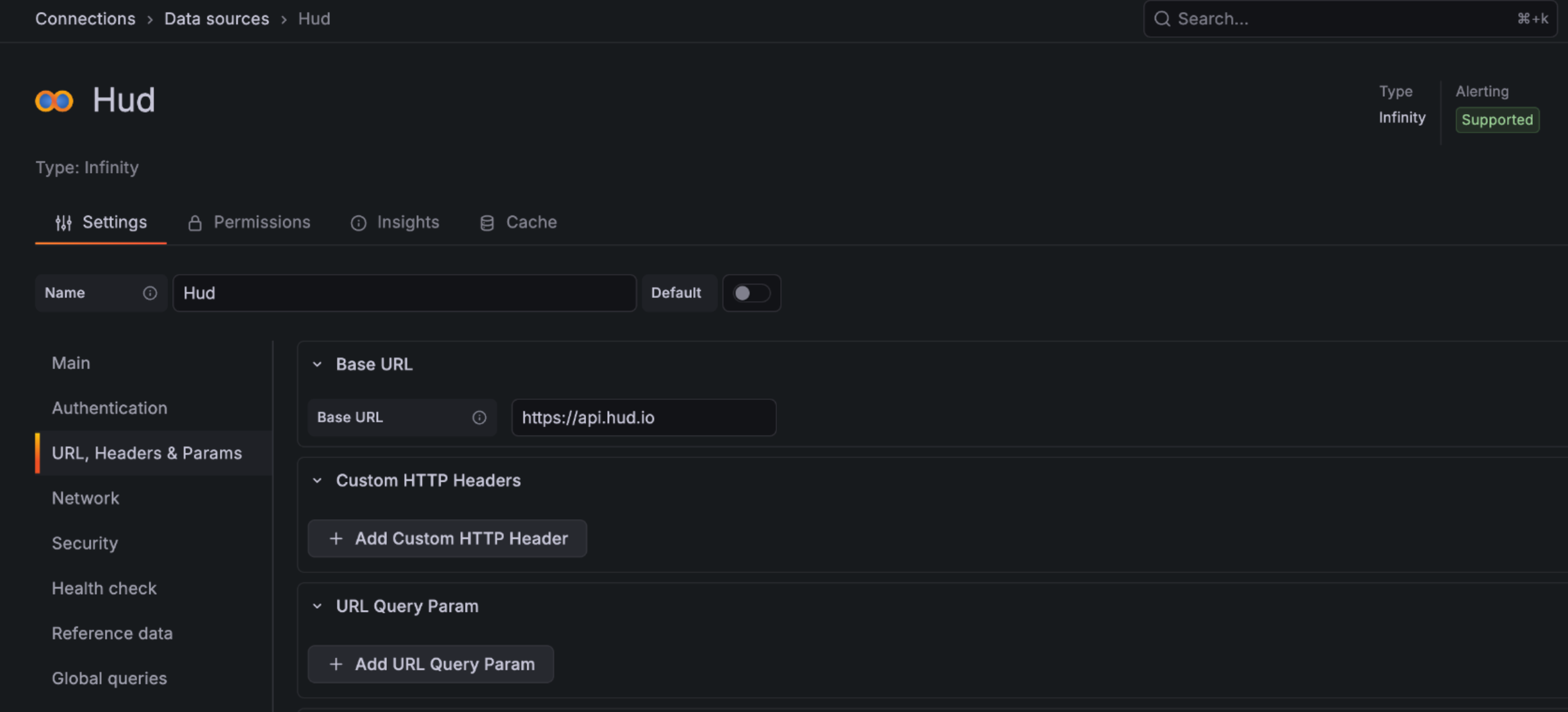
Go to Connections > Data sources > Add data source, select Infinity, and configure:
- Name:
Hud(or any name you prefer) - URL:
https://api.hud.io
3. Configure authentication
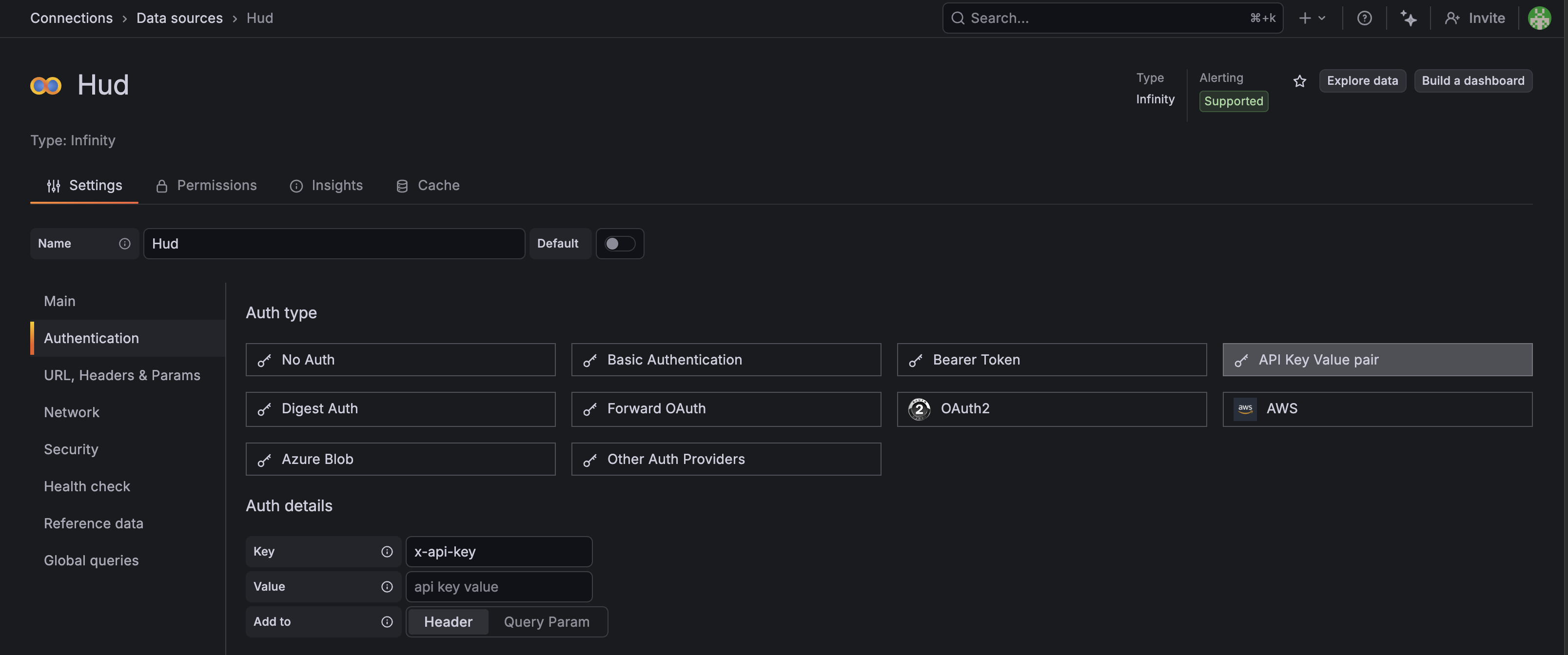
Under Authentication, select API Key Value pair and add:
- Key:
x-api-key - Value: Your Hud API key
- Add to: Header
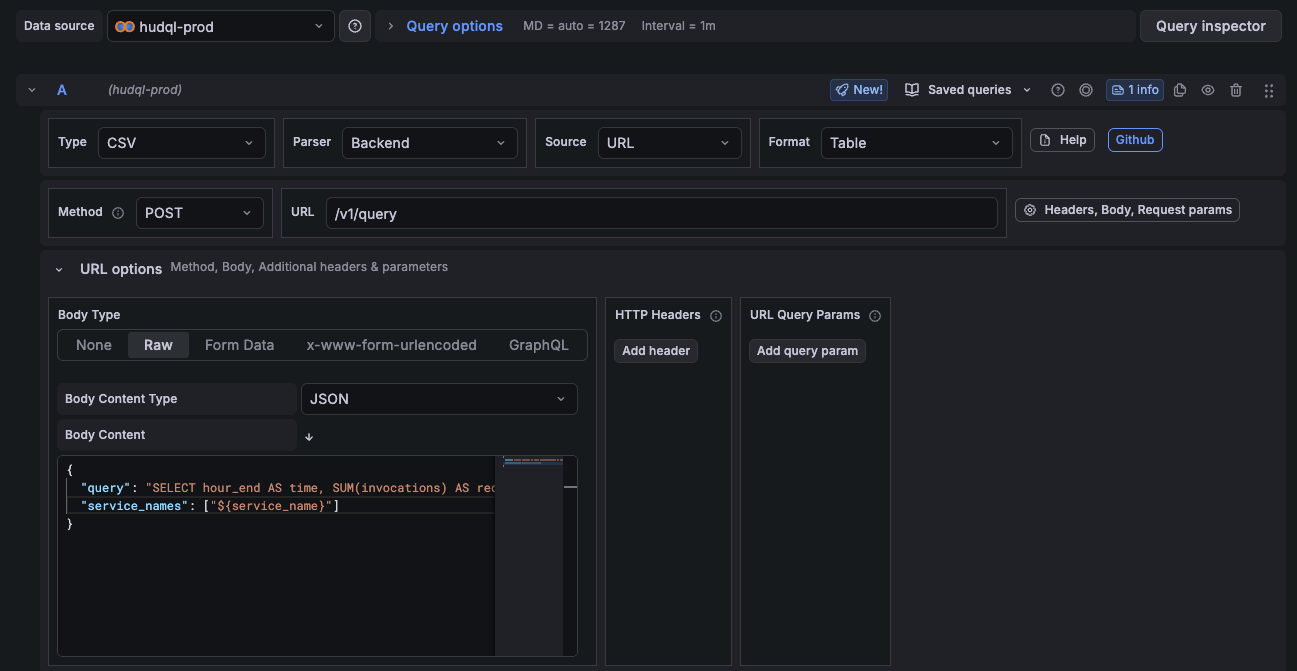
4. Configure a query panel
| Setting | Value |
|---|---|
| Type | CSV |
| Parser | Backend |
| Source | URL |
| URL | /v1/query |
| Method | POST |
| Body type | Raw |
| Body content type | JSON (application/json) |
In the body, send your HudQL query. Use Grafana's built-in ${__from} and ${__to} variables for time range binding:
{
  "query": "SELECT hour_end AS time, SUM(invocations) AS requests FROM EndpointMetricsLowResolution WHERE hour_end >= toDateTime('${__from:date:YYYY-MM-DD HH:mm:ss}') AND hour_end <= toDateTime('${__to:date:YYYY-MM-DD HH:mm:ss}') GROUP BY hour_end ORDER BY time ASC LIMIT 10000",
  "service_names": ["${service_name}"]
}
Define columns in the Infinity query editor to map types correctly (e.g. time as timestamp, requests as number).
Template variable for service name
Create a service_name dashboard variable by querying distinct services:
{
  "query": "SELECT DISTINCT service_name FROM EndpointMetricsLowResolution WHERE hour_end >= toDateTime('${__from:date:YYYY-MM-DD HH:mm:ss}') AND hour_end <= toDateTime('${__to:date:YYYY-MM-DD HH:mm:ss}') ORDER BY service_name LIMIT 100"
}
Build a dashboard with Hud's data
Use the prompt below with your coding agent (Cursor, Claude, etc.) to generate a full Grafana dashboard JSON. Paste the output into a new dashboard via Settings > JSON Modal.
Use the Hud MCP hud-get-schema tool to understand the full HudQL database schema (tables, columns, custom SQL functions, and query examples).

Then create a Grafana dashboard JSON using the Infinity datasource. Include $datasource and $service_name template variables.

Template variables:

// 1. Datasource selector (type: "datasource")
{ "name": "datasource", "type": "datasource", "query": "yesoreyeram-infinity-datasource" }

// 2. Service name (type: "query"), note the queryType/infinityQuery wrapper
{
  "name": "service_name",
  "type": "query",
  "datasource": { "type": "yesoreyeram-infinity-datasource", "uid": "${datasource}" },
  "query": {
    "queryType": "infinity",
    "infinityQuery": {
      "refId": "variable",
      "type": "csv", "parser": "backend", "source": "url", "format": "table",
      "url": "/v1/query",
      "url_options": {
        "method": "POST", "body_type": "raw", "body_content_type": "application/json",
        "data": "{\"query\": \"SELECT DISTINCT service_name FROM EndpointMetricsLowResolution ORDER BY service_name LIMIT 100\"}"
      },
      "columns": [{ "selector": "service_name", "text": "service_name", "type": "string" }],
      "filters": [], "root_selector": "", "global_query_id": ""
    }
  }
}

Every panel target must use this exact structure:

{
  "datasource": { "type": "yesoreyeram-infinity-datasource", "uid": "${datasource}" },
  "refId": "A",
  "type": "csv",
  "parser": "backend",
  "source": "url",
  "format": "table",
  "url": "/v1/query",
  "url_options": {
    "method": "POST",
    "body_type": "raw",
    "body_content_type": "application/json",
    "data": "{\"query\": \"SELECT ...\", \"service_names\": [\"${service_name}\"]}"
  },
  "columns": [
    { "selector": "col_alias", "text": "Display Name", "type": "timestamp|number|string" }
  ],
  "filters": [],
  "root_selector": "",
  "global_query_id": ""
}

Critical details:

- The POST body key is `data`, NOT `body`. Using `body` causes 400 errors.
- Every target must include `filters: []`, `root_selector: ""`, `global_query_id: ""`.
- Use `"uid": "${datasource}"` everywhere, never hardcode a datasource UID.
- Time range: `toDateTime('${__from:date:YYYY-MM-DD HH:mm:ss}')` and same for `${__to}`.
- Time series: alias the time column as `time`. For per-endpoint series, add a `partitionByValues` transformation referencing the column's text (display name), with `"naming": { "asLabels": true }`.
- Stat panels: `reduceOptions.fields` as regex like `/^total_requests$/`, `calcs: ["lastNotNull"]`. Stat panel columns can be `[]`.

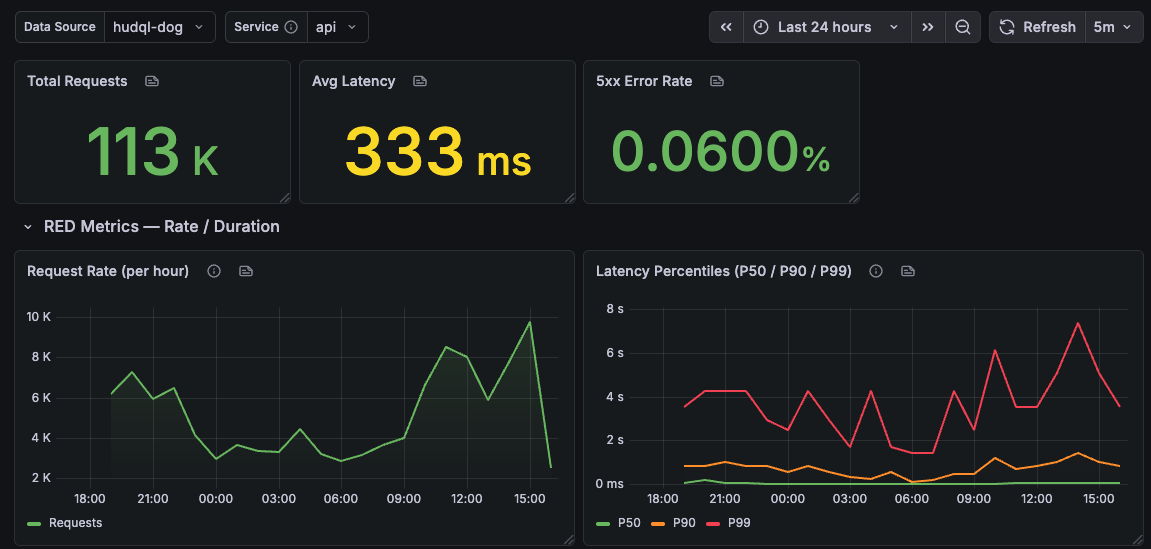
Panels: summary stats (total requests, avg latency, 5xx rate, active pods), time series (request rate, P50/P90/P99 latency), P90 per endpoint over time, drill-down tables (top endpoints by P99, top exceptions). Use `EndpointMetricsLowResolution` for metrics, join `Endpoints` for names.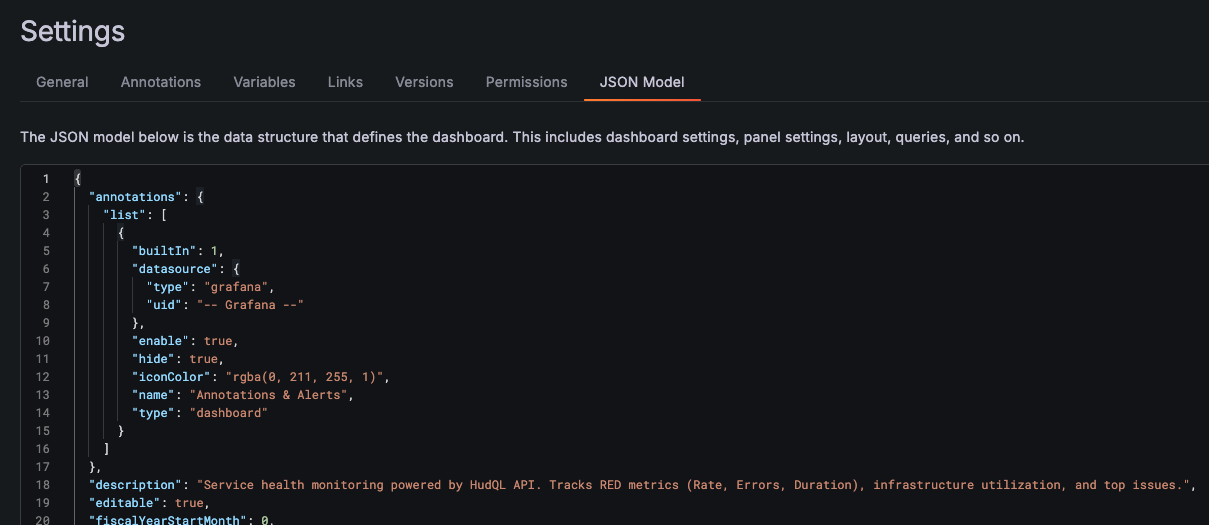
The result:
Set up alerts
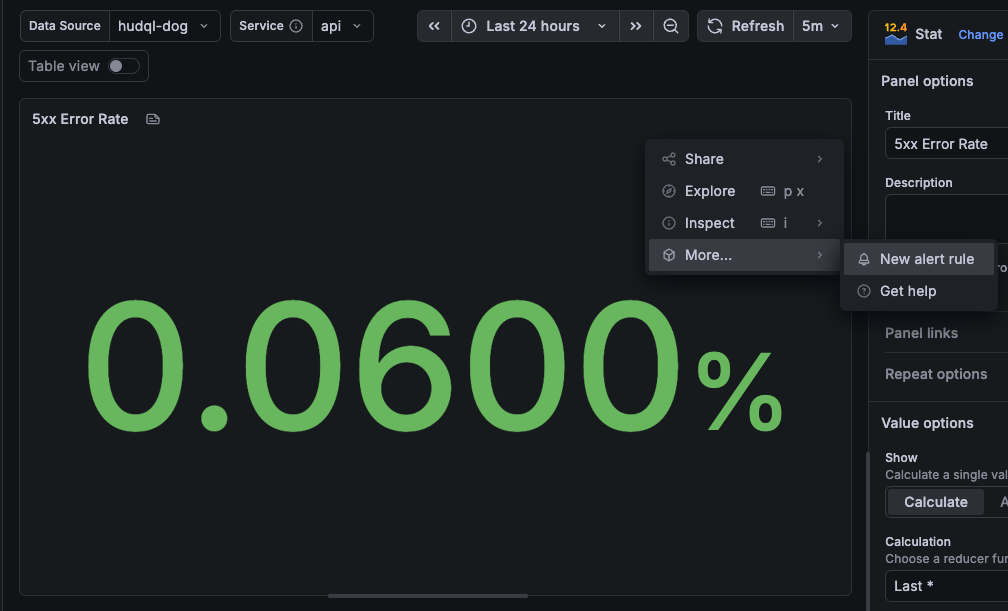
Once a dashboard is in place, you can alert on any panel: click the panel's three-dot menu, choose More > New alert rule, and configure your alert logic against the underlying HudQL query.
Troubleshooting and support
- Schema discovery: Use the
hud-get-schematool in Hud MCP for the complete table and column catalog with query examples. - Query errors: A 400 response includes the underlying SQL error message. Check column names and table joins first.
- Need help? Open the in-app support chat and we'll jump in.
Updated 23 days ago